How to Adapt a Gaming Desk into a Professional Home Office
Jump to section
If you already own a gaming desk or are considering buying one for your home office, you might wonder whether a piece of furniture designed for high-octane entertainment can function effectively as a daily professional workspace. The short answer is yes. In fact, many gaming desks offer structural stability, generous depth, and heavy-load capacity that put standard flat-pack office desks to shame. However, bringing a gaming desk into a professional work-from-home environment requires a few intentional adjustments.
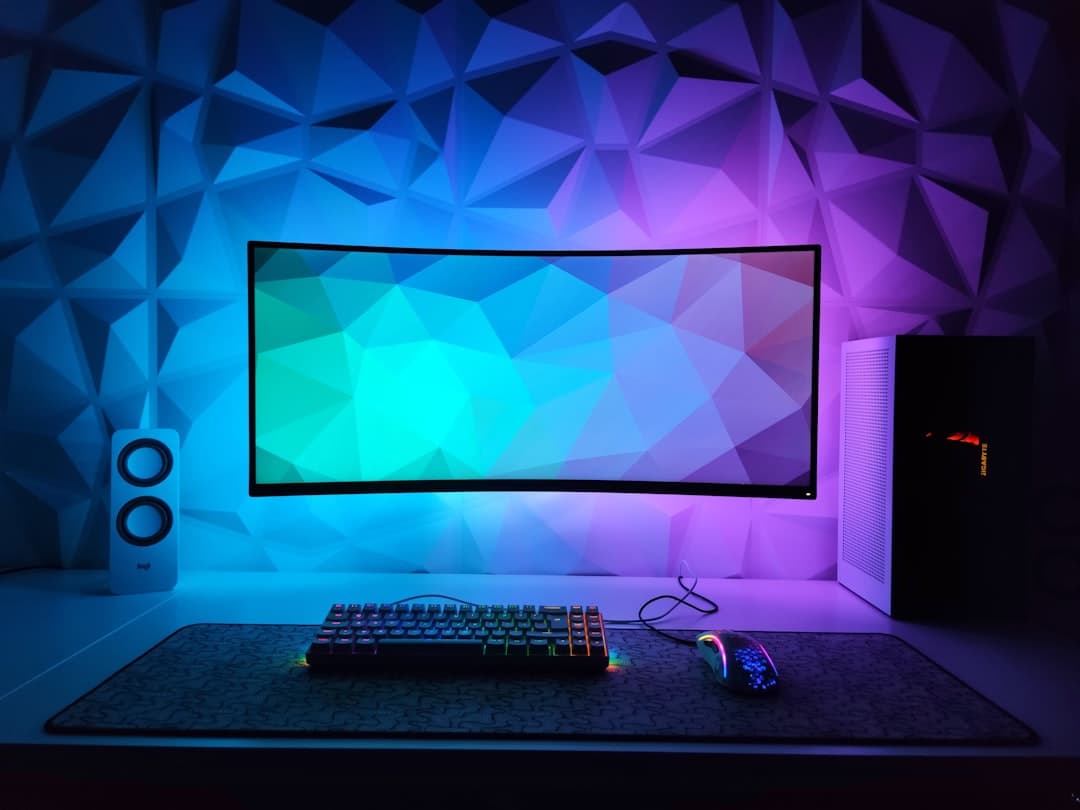
Bright RGB lighting strips, carbon-fiber textured tops, aggressive red-and-black accent trim, and clicky peripheral accessories can easily derail the professional atmosphere of a video call or make your office feel overly chaotic. By thoughtfully modifying your existing gear, managing your cables, and dialing in your ergonomics, you can convert your setup into a clean, quiet, and working hub. Please note that while ergonomic setup tips can enhance everyday comfort, this advice is for practical organization purposes and does not constitute medical advice. If you experience chronic physical discomfort, consult a qualified healthcare professional.
Why a Gaming Desk Makes a Surprising Foundation for Remote Work
Before modifying the appearance of your setup, it helps to understand why a gaming desk is often an excellent physical starting point for remote employment. Unlike budget writing tables that wobble under the weight of multiple monitors, desks engineered for gaming setups are built with heavy structural framing.
Heavy-Duty Build Quality and Weight Capacities
Gaming furniture is typically manufactured to support heavy desktop computer towers, multi-monitor arrays, broad desk mats, and heavy microphone booms. Most steel-frame gaming desks feature load capacities ranging from 150 to over 300 pounds. This structural stability means your surface won't bow under the weight of dual 27-inch monitors, heavy monitor arms, or external audio gear.
Standing gaming desks also tend to utilize dual-motor lifting mechanisms rather than cheaper single-motor setups. This provides smooth height transitions throughout your workday when switching between sitting and standing postures, helping you stay comfortable during long shifts.
Surface Depth and Equipment Real Estate
A common mistake when setting up a home workspace is choosing a desk that is too shallow. Standard home office writing desks often measure only 20 to 24 inches from front to back. When you place a monitor stand and a keyboard on a shallow surface, your screen ends up right in front of your face, leading to visual fatigue and awkward elbow positioning.
In contrast, many gaming desks offer depths of 28 to 32 inches. That extra 6 to 8 inches of depth gives you space to push monitors back to an appropriate viewing distance while leaving room for an ergonomic keyboard layout, wrist rests, and reference papers without feeling cramped.
Built-In Cable Pass-Throughs and Steel Frames
Because PC gaming involves extensive wiring for power, displays, and peripherals, these desks almost always include built-in cable management features. Grommet holes, rear cutouts, and under-desk steel trays are standard inclusions. When converting the desk for office work, these features give you a massive head start in hiding work laptop power bricks, dock cables, and monitor cords.
Step 1: Taming RGB Lighting and Aggressive Aesthetics
The primary barrier between a gaming desk and a professional aesthetic is visual noise. Gaming aesthetics favor sharp angles, high-contrast colors, and bright LED lighting. Transitioning your desk into a professional home office requires dampening these elements.
Managing Integrated LED Strips
If your desk features built-in RGB lighting along the edges or legs, you do not necessarily need to rip out the wiring. Instead, take control of the software or inline controller:
- Switch to Neutral Color Temperatures: Set the LEDs to a static warm white (around 2700K to 3000K) or soft neutral light. This converts distracting ambient lighting into functional bias lighting that reduces eye strain when working in low-light environments.
- Disable Dynamic Lighting Modes: Turn off rainbow waves, flashing patterns, or audio-reactive modes. Static lighting looks intentionally designed, while moving lights distract you and colleagues on camera.
- Disconnect Power: If the LEDs cannot be set to a plain white or off-state, simply unplug the USB connector powering the light strip under the desk.
Covering Carbon Fiber and Bright Accents
Many gaming surfaces are covered in a black carbon-fiber vinyl print or feature bright red, green, or blue geometric patterns. While durable, these patterns can look visually busy on camera and make it harder to focus during work hours.
The simplest fix is introducing a broad, high-quality desk pad. A large desk pad measuring 36 by 18 inches (or larger) covers the central portion of the desk surface. Choose matte materials such as felted wool, genuine leather, or neutral polyurethane leather in tones like slate gray, brown, navy, or off-black. This immediately grounds your workspace in a classic executive style.
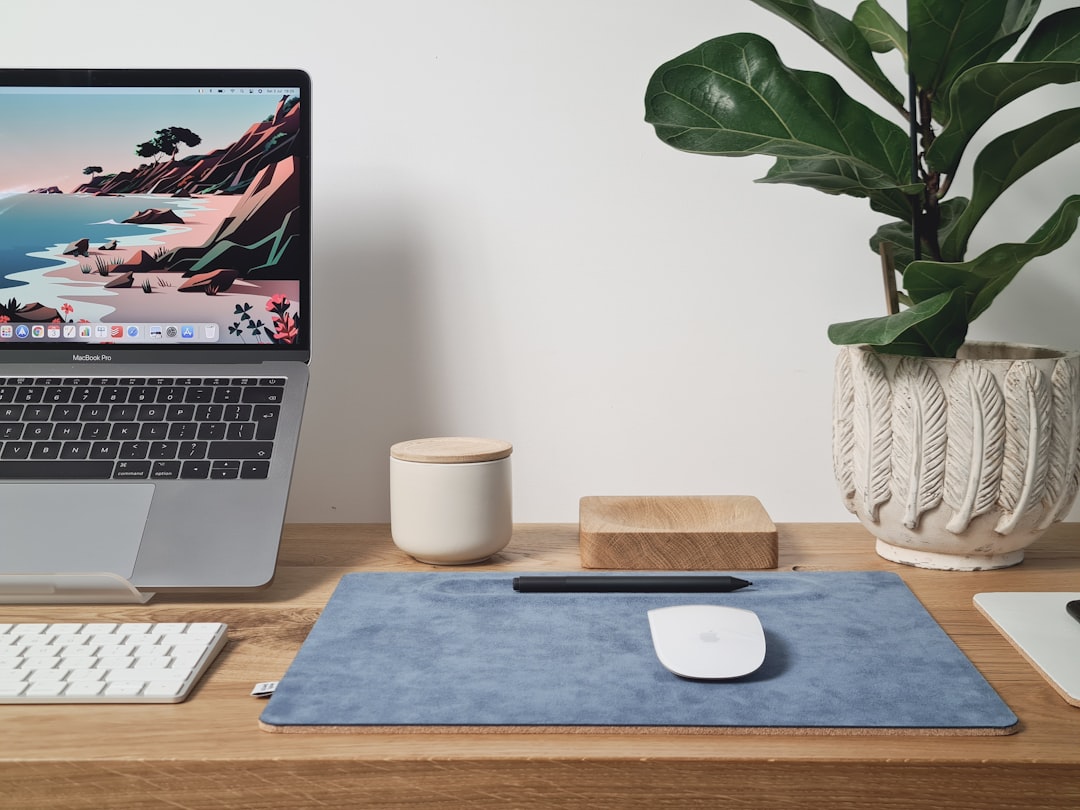
For aggressive edge trim or brightly painted steel legs, consider applying matte black vinyl wrap or edge-banding tape over the bright trim. This non-permanent modification neutralizes neon colors without damaging the desk beneath.
Step 2: Cable Management Solutions for Clean Video Calls
A clutter-free workspace promotes mental clarity and prevents accidental cable snags when moving your chair or adjusting a sitting-standing desk. Remote work often introduces a work laptop, a docking station, secondary monitors, webcams, and mobile chargers onto a desk that may already host a personal PC.
Mounting Power Strips and Under-Desk Trays
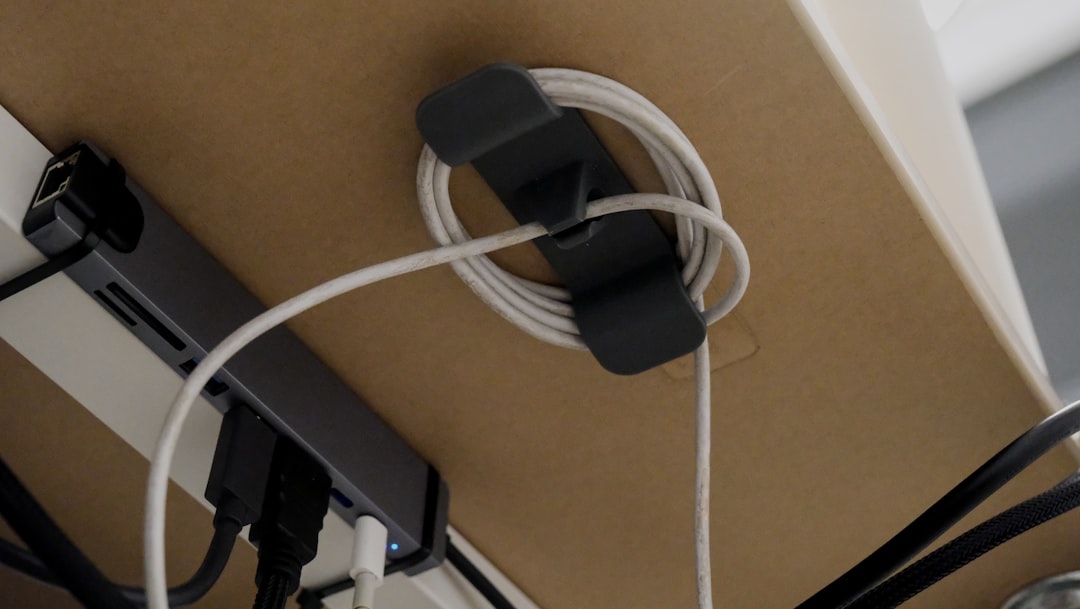
Avoid leaving power strips on the floor behind your desk where dust accumulates and cables tangle around your feet. Instead, mount heavy-duty surge protectors directly to the underside of the desk surface using heavy-duty double-sided mounting tape or screws if the desk frame permits.
If your gaming desk did not come with an under-desk cable basket, install a wire mesh tray or J-channel raceway along the rear underside of the desk. Place all bulky power bricks, docking station power blocks, and excess cord loops inside this tray. The only cable running from your desk to the wall should be a single, heavy-duty main power cord.
Streamlining Work Laptops and Gaming PCs with KVM Switches
If you use the same desk for your job during the day and personal projects or gaming at night, constantly plugging and unplugging cables is inefficient and creates wear on port connectors. A KVM (Keyboard, Video, Mouse) switch or a USB-C docking station with dual-host support allows you to share your monitors, keyboard, mouse, and webcam between your work laptop and personal desktop with the press of a single button.
When organizing these accessories, explore our advice on smart sourcing for retail office supplies to pick up cost-effective cable clips, mounting strips, and desk organizers without overspending.
Step 3: Optimizing Ergonomics and Monitor Placement
Ergonomics play a vital role in keeping you comfortable through eight-hour workdays. While gaming desks provide a sturdy platform, stock monitor stands and static desk heights often lead to awkward postures. Remember that ergonomic adjustments are practical comfort measures, not medical treatments; reach out to a healthcare provider if you experience persistent strain.
Selecting and Mounting VESA Monitor Arms
Stock gaming monitor stands often feature wide tripod-style feet that consume valuable desk surface area. Replacing stock stands with a clamp-on VESA monitor arm opens up workspace beneath your screen while giving you precise control over monitor height, tilt, and distance.
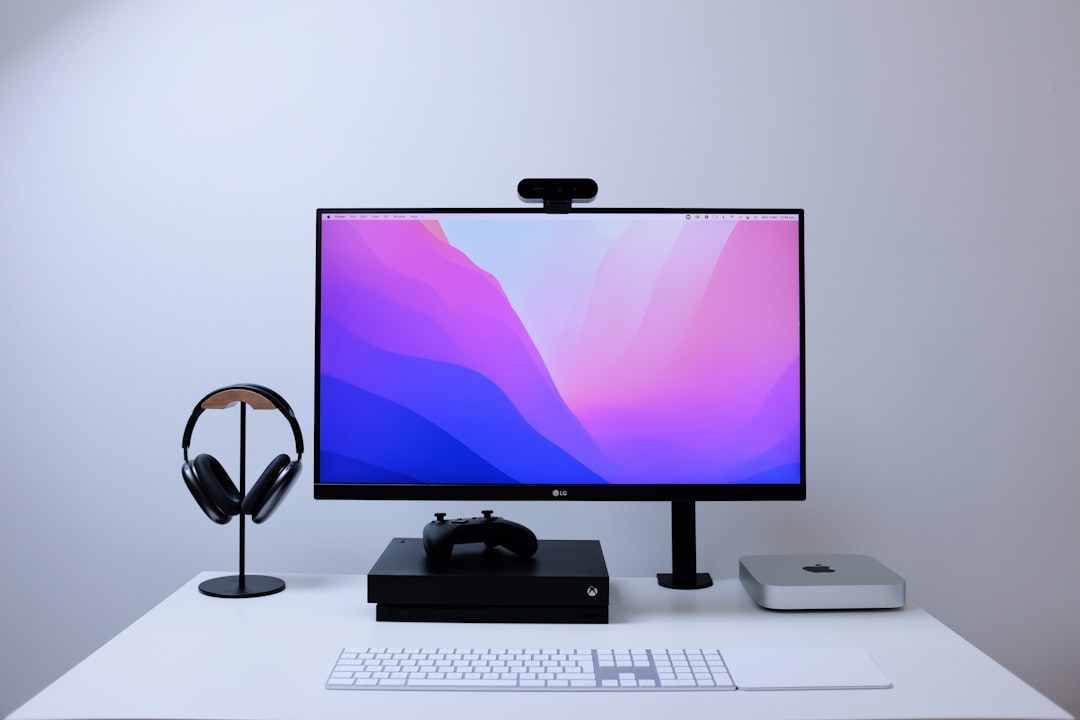
Before buying a monitor arm, check the desktop material of your gaming desk. Some budget gaming desks use thin, hollow-core particleboard or honeycomb cardboard fill. Clamping a heavy monitor arm onto a thin hollow top can cause the clamp to crush the wood over time. If your desk has a thin top, use a monitor arm reinforcement plate—a simple metal plate that distributes the clamping pressure over a wider surface area.
Positioning Your Screens for Comfort
Set your primary monitor so the top edge of the screen sits at or slightly below eye level. When looking straight ahead, your gaze should rest on the upper third of the display. This position encourages a neutral neck alignment rather than tilting your chin upward or dipping your head forward.
If you use dual monitors, position the primary monitor directly in front of you if you spend 80% of your day looking at it, with the secondary monitor angled slightly to the side. If you use both screens equally, align them symmetrically in an arc so their inside edges meet directly in front of your nose.
Step 4: Swapping Gaming Accessories for Office Utility
The peripherals you use play a massive role in how professional your home office feels, especially when collaborating with teammates online.
Replacing Clicky Mechanical Keyboards with Silent Switches
Many gaming setups feature mechanical keyboards outfitted with loud tactile or clicky key switches (such as blue-style switches). While satisfying for gaming, the clatter of loud keys can be picked up by your webcam microphone during meetings, interrupting calls and creating background noise.
You do not need to give up mechanical keyboards entirely. Consider switching to a keyboard equipped with silent linear or silent tactile switches, or choose a low-profile ergonomic membrane keyboard. Silent switches keep your typing noise low while maintaining typing comfort.
Upgrading Seating for Long Workdays
High-backed gaming chairs designed like racecar bucket seats are popular, but they are not always ideal for full-day office productivity. The aggressive side bolsters in bucket seats push shoulders forward, and synthetic polyurethane leather traps heat during long sitting sessions.
Consider pairing your repurposed desk with an ergonomic mesh task chair. A chair featuring adjustable lumbar support, 3D armrests, and breathable mesh upholstery keeps you cooler and supports a natural, upright posture while typing.
Adding Professional Task Lighting
Overhead room lights often create harsh glares on screens or cast shadows over your face during video conferences. To create a professional lighting setup:
- Add a Monitor Light Bar: A USB-powered light bar clips onto the top of your monitor, directing light down onto your desk without creating screen glare or taking up desk space.
- Use Soft Key Lighting for Video Calls: Position a small, diffused LED light panel behind your webcam at eye level to evenly illuminate your face for video meetings. Set the color temperature to match natural daylight (4000K to 5000K).
Comparison Table: Gaming Desk Features vs Professional Office Needs
Here is a breakdown of common gaming desk features and how to adapt them for daily work-from-home responsibilities:
| Desk Feature | Original Gaming Function | Professional Office Adaptation |
|---|---|---|
| RGB LED Strips | Atmospheric lighting and immersion | Set to static warm white for eye-strain reduction or disconnect power |
| Carbon Fiber Finish | Sporty look and scratch resistance | Cover center area with a large felt or leather desk pad |
| Cup Holders & Headphone Hooks | Convenient access during play | Use for coffee mugs, water bottles, and video call headsets |
| Broad Desktop Depth (28"–32") | Space for large monitor bases | Allows proper ergonomic viewing distance for dual screens |
| Cable Cutouts & Trays | Hiding gaming PC cabling | Route laptop docks, webcams, and phone chargers cleanly |
Practical Workspace Accessories to Complete the Transition
Once the foundation is set, small organizational accessories bring everything together:
- Vertical Laptop Stand: If you use an external monitor as your main display, store your work laptop vertically in a weighted aluminum stand to recover desk surface.
- Under-Desk Drawer Unit: Gaming desks rarely feature built-in drawers. Adding a mobile rolling file cabinet under the desk or attaching a slide-out adhesive under-desk drawer offers a place to store pens, notepads, and sticky notes.
- Headset Hanger: Repurpose built-in headphone hooks to keep your business headset off the primary desk surface when not in use.
Frequently Asked Questions About Using a Gaming Desk for Work
Can you clamp a monitor arm onto a gaming desk?
In most cases, yes. Most steel-framed gaming desks handle monitor arm clamps without issue. However, if the desk top is made of thin engineered wood or features a sloped back edge designed purely for style, check the thickness first. Using a reinforcement plate on thin surfaces helps spread the load evenly and prevents damage to the desktop.
Are gaming desks good for full-time remote work?
Yes. Gaming desks are built for long hours of continuous use and often feature higher weight limits, deeper surfaces, and sturdier frames than standard entry-level office desks. With minor cosmetic changes, they provide excellent durability and comfort for work.
How do I hide aggressive branding on my desk?
Large desk pads cover center logos effortlessly. For logos printed on the frame or legs, high-grade vinyl tape or matte black stickers can cover branding neatly without permanently altering the original furniture finish.
Final Checklist for Your Refined WFH Setup
Before calling your workspace complete, review this quick checklist to ensure your converted gaming desk is fully optimized for professional work:
- RGB lights set to soft white, neutral daylight, or turned off completely.
- Center desk surface covered with a neutral, non-reflective desk pad.
- Cables routed under the desk through raceways or mounting clips.
- Work laptop and personal PC connected through a streamlined docking station or KVM switch.
- Monitor height adjusted so the top third of the screen is at eye level.
- Loud mechanical keyboard switches swapped for silent alternatives.
- Task lighting added to reduce eye strain and brighten your video call camera feed.
By taking advantage of the structural strength of a gaming desk while dialing back its visual loudness, you create an inviting, comfortable home office built for daily productivity.
Keep reading
Related Articles
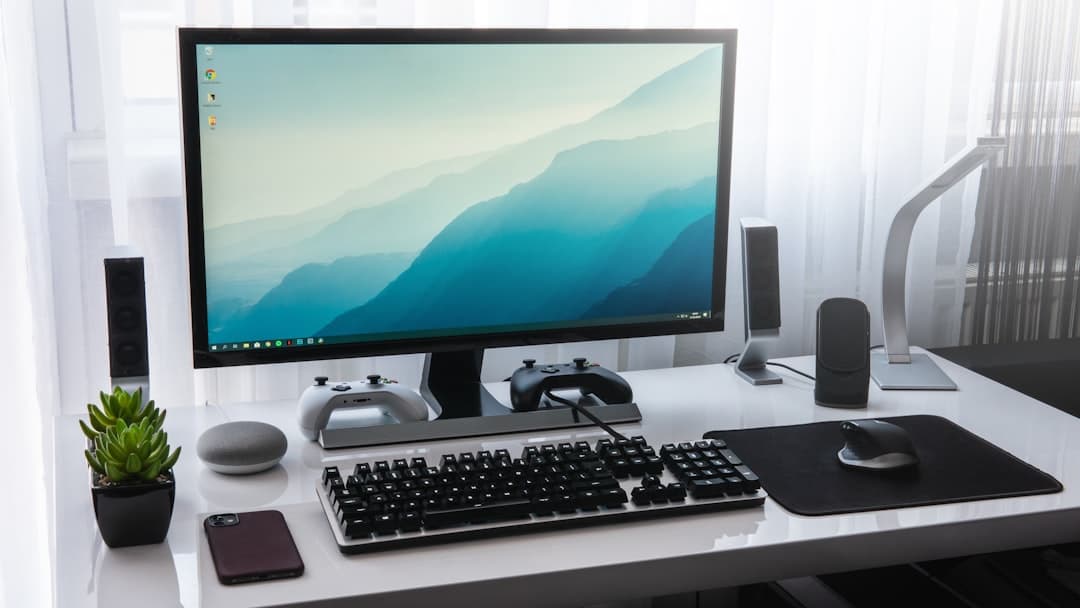
Desk Cable Management Essentials: A Practical Step-by-Step Guide
Tame chaotic wires and clean up your workspace with this practical, step-by-step desk cable management guide for home office workers.
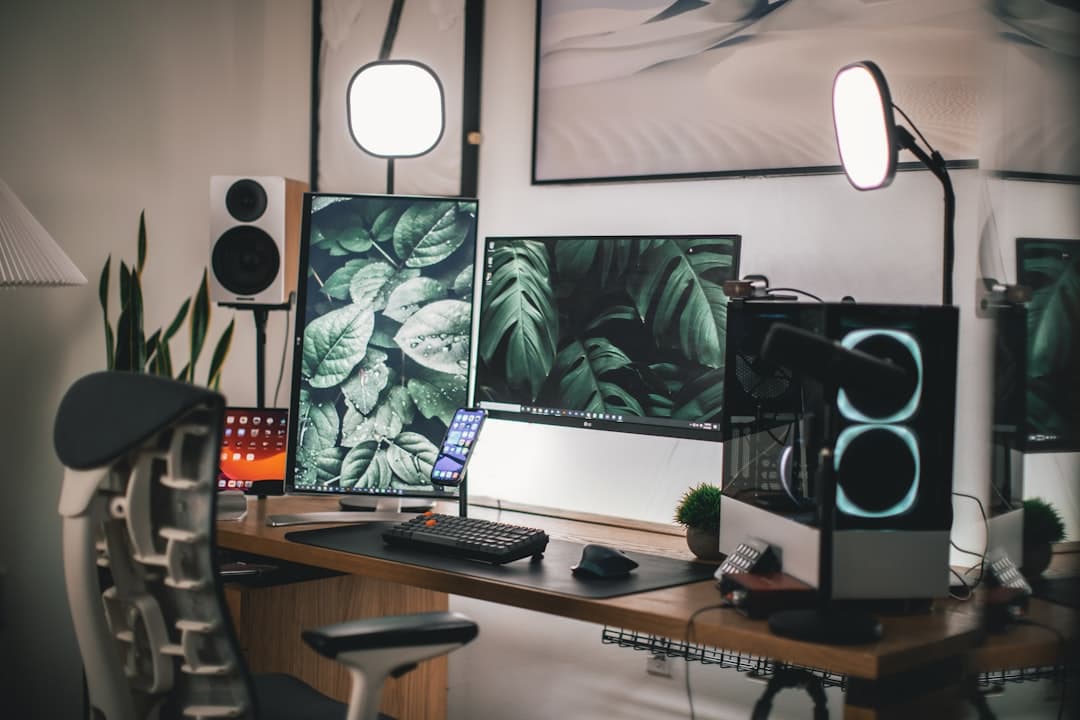
How to Maximize Space with an L Shaped Desk in a Small Home Office
Learn how an L shaped desk can transform a small home office by reclaiming unused corners, organizing dual work zones, and maximizing vertical storage.
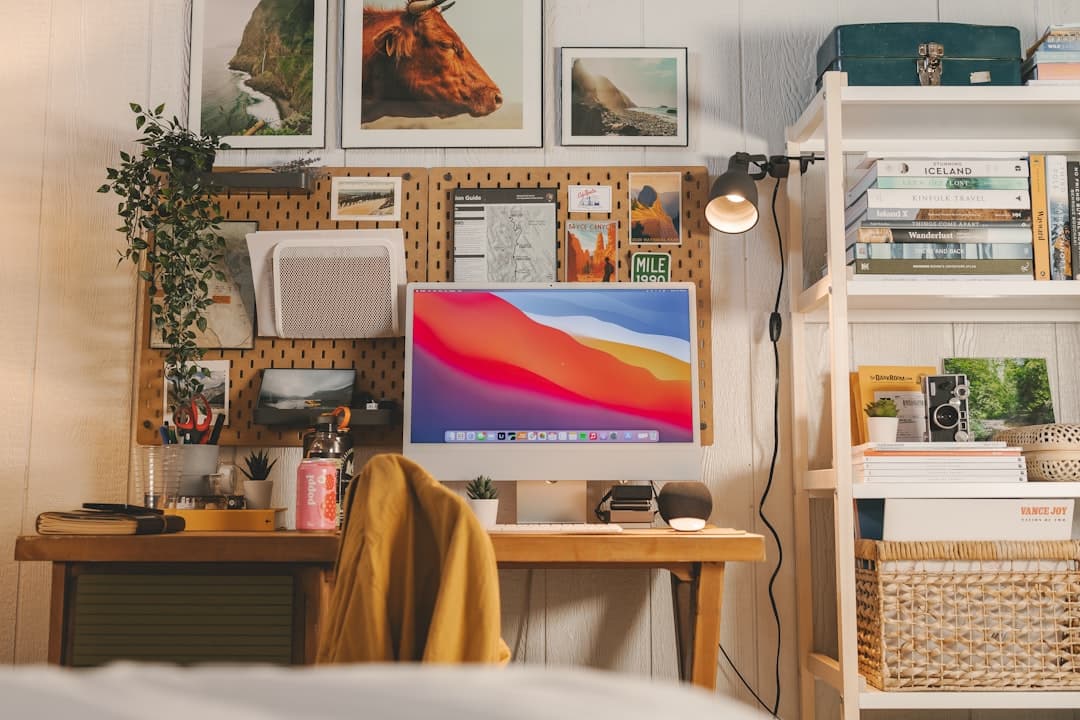
Small Space Home Office Ideas Using a Corner Desk
Transform an unused nook into a functional workspace with these small space home office ideas using a corner desk, covering layout, lighting, and storage.